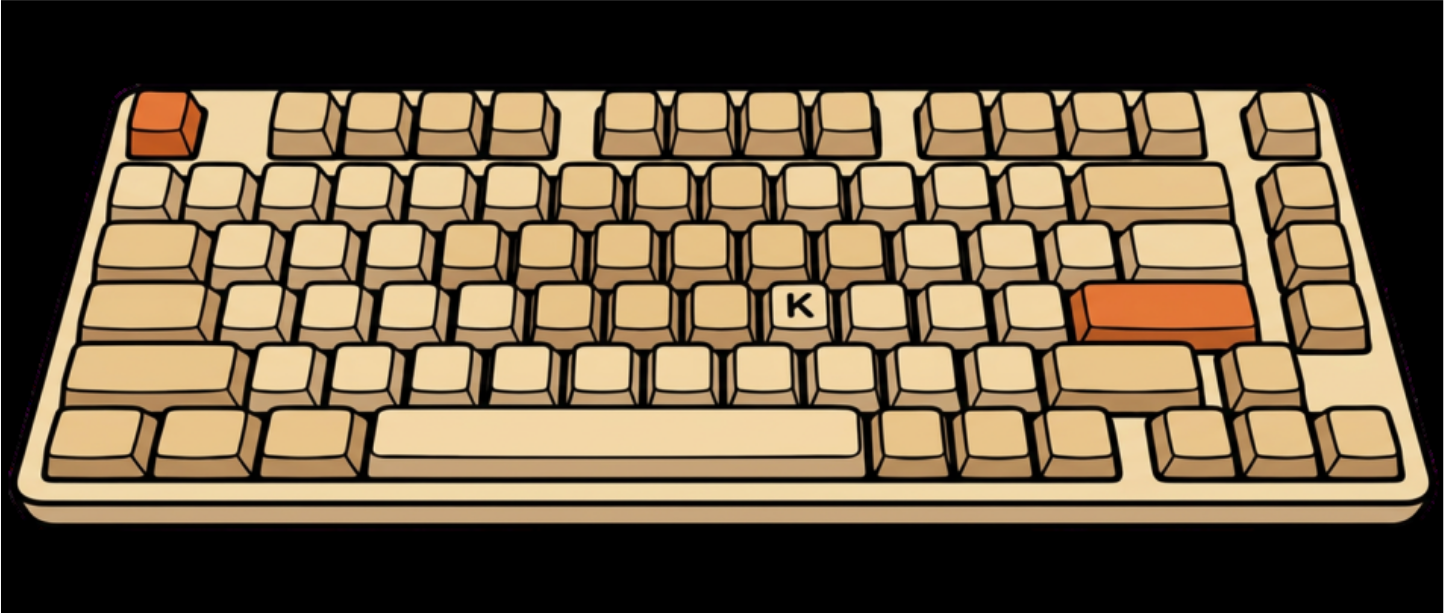
Your theme appears on the menu bar icon and lock border when locked.
Icon
Color
Fri 9:20 AM
Meeting Notes
Email
Zoom Call
Slack
AI Task
⌨ Input blocked by Catnip
Prevent
Wrong email to boss · Call ended · AI prompt aborted · Slack spam · Notes deleted · Window closed · File trashed · Music skipped · Wrong reply-all · Screen share stopped · Slide skipped · Form submitted · Tab closed · Code deleted · Toddler keystrokes · Drag & drop mess · Brightness maxed · Accidental send · Meeting left · Video kept playing · Volume maxed · Mic unmuted · Reply-all disaster · Wrong email to boss · Call ended · AI prompt aborted · Slack spam · Notes deleted · Window closed · File trashed · Music skipped · Wrong reply-all · Screen share stopped · Slide skipped · Form submitted · Tab closed · Code deleted · Toddler keystrokes · Drag & drop mess · Brightness maxed · Accidental send · Meeting left · Video kept playing · Volume maxed · Mic unmuted · Reply-all disaster ·
There's a better way to lock your keyboard
Covering your screen stops your video, your call, your work. Blasting an alarm assumes cats are deterred by loud noises. They are not. Requiring a watch or phone just to trigger a lock adds friction you don't have time for.
Catnip needs none of that.
Stop what you're watchingStop what you're readingStop what you're listening toOverlay on screenObscure your workDreaded error toneStop your progressLock your MacClose your deviceHide your keyboardFumble for another deviceUnexpected audio (even when locked)
How It Works
Everything locked. Nothing missed.
Built for macOS from the ground up. Menu bar-native and lightweight.
Every key, click, drag, and media button silently absorbed. Everything you were doing keeps running exactly as it was.
Full Input Shield
Not just keystrokes. Every input method locked simultaneously: typing, clicking, dragging, window movement, trackpad gestures, tab closures, all of it.
KeystrokesMouse clicksDrag & dropTrackpad gesturesWindow movement
Instant Lock
One click or a global shortcut. Unlock just as fast. No confirmation dialogs.
⌘+⌥+K
Default shortcut. Fully customizable in Settings.
Multi-Monitor Support
Input locks once across your entire Mac, not per screen. Every display gets a clear accent border so you always know you're protected. Video, calls, music, and reading keep going on every monitor.
Siri & Shortcuts
Lock, unlock, or toggle hands-free. Set it once in Shortcuts and say the word.
Catnip is activelocked
Media & Function Shield
Optionally block the function row. Nothing touches your playback, volume, or brightness.
Presenter Mode
Lock input during screen sharing with no overlay visible to your audience.
Native macOS Design
Menu bar-native. Built in Swift. Quiet by design. Lives in your menu bar and stays out of the way.
Menu Bar
Icon and lock color
Make Catnip yours. Pick an icon and accent color for the menu bar control and lock border.
Try it. Updates the demo above.
Icon
Quick colors
When locked, the menu bar control and a border around each screen use this color.
Wall of Love
Beta testers can't stop talking about it
From developers to parents. Here's what early users say.
"I run long AI coding sessions overnight. Before Catnip my cat had deleted three files and opened 12 browser tabs. Now I wake up to clean output every time."
MK
Marco K.
Senior Software Engineer
"My toddler loves sitting on my lap during video calls. Catnip means I'm actually present in meetings instead of chasing stray keystrokes."
SL
Sofia L.
Product Designer, remote
"I present client work weekly. Presenter Mode is a revelation. The screen stays on, and nothing can go wrong. Should have existed years ago."
AT
Alex T.
Creative Director
Perfect for
Every interruption, accounted for.
Cat owners
Lock before stepping away. No deleted files, no accidental calls.
Parents
Let the toddler bang away. Nothing gets through.
AI coding
Long agent runs. Lock up, come back to clean output.
Video calls
Stay present without stray keystrokes.
Presentations
Screen sharing without input chaos.
Keyboard cleaning
Wipe between the keys without triggering anything.
Watching & reading
Lock everything. Nothing interrupts your stream.
Siri automation
One phrase. Catnip does the rest.
Also works for
Not just for cats.
Catnip works for toddlers, dogs, and everything else that happens while you're right in the middle of something.
Pause the keyboard. Not the progress.
Available now on the Mac App Store. Lightweight, native, and just works.
Lock everything. Interrupt nothing. That includes your privacy.
What we collect
Nothing. Catnip has no servers, no accounts, no analytics, and no telemetry of any kind.
Keyboard and input data
Catnip intercepts input events locally on your Mac to block them. No keystrokes, mouse movements, or trackpad data ever leave your device.
Crash reports
macOS may offer to send crash reports through Apple's own reporter. Catnip itself never receives or stores these.
App Store purchases
Your purchase is handled entirely by Apple. Studio Giri receives only anonymised sales data from Apple. We never receive your name, payment details, or personal information.
Third-party services
None. Catnip contains no third-party SDKs, advertising frameworks, or tracking libraries.
We read every message and reply within one business day.
Before you write in
macOS 13 Ventura or later is required
Check Accessibility is enabled: System Settings → Privacy & Security → Accessibility → Catnip should be on
Try quitting and relaunching from the menu bar icon
If the keyboard stays locked after a crash, press ⌥⌘K to unlock
Send feedback from Catnip
The fastest way to reach us is directly from the app. Click the Catnip menu bar icon → Send Feedback, or open Settings and scroll to the bottom. You can report a bug, share an idea, ask a question, or just say hello.
Catnip automatically includes your app version, macOS version, and display information to help us debug. No extra steps needed. Add your email if you'd like a personal reply.
Contact
Prefer email? Write to support@studiogiri.com and include your macOS version and a short description of what happened.
This app is dumb. Why don't people just lock their computer or close the screen?
Sure. Or you could keep going without stopping everything every time a cat (or toddler) walks in the room. Screen lock pauses your whole Mac. Catnip only pauses your input.
Is this hardware or software level?
Software, using macOS Accessibility APIs. No kernel extensions or drivers required.
Will it affect my screen, video, or audio?
No. Only input is blocked. Your screen stays on, video keeps playing, music keeps running, and downloads continue on every display.
Does Catnip work with multiple monitors?
Yes. Locking is system-wide. One lock covers your whole Mac, every monitor, and every connected keyboard, mouse, and trackpad. Each screen shows a colored border in your chosen accent so the state is obvious wherever you look. Nothing is dimmed or paused. You can keep watching, listening, reading, and presenting on any display.
How do I unlock?
Click the Catnip icon in the menu bar. It stays clickable even when the keyboard is locked. Or press ⌥⌘K.
Does it work with external keyboards and mice?
Yes. All connected input devices are blocked simultaneously, including USB and Bluetooth keyboards, mice, and trackpads.
What macOS versions are supported?
macOS 13 Ventura or later. Optimized for Sonoma and Sequoia.
Is any data sent off my Mac?
No. Everything happens locally. No accounts, no analytics, no telemetry, no network requests.
Why does it need Accessibility permission?
macOS requires Accessibility access for any app that intercepts system-wide input events. Catnip uses it solely to block input. It never reads, records, or stores what you type.
Does it block the trackpad too?
Yes. Catnip blocks keyboard, trackpad, mouse clicks, and media keys together. Most keyboard lockers only block typing. Catnip locks your entire input surface.
Will Catnip change my wallpaper when I pick a theme color?
No. Your accent color applies to the menu bar icon and the lock border on each display. Your desktop wallpaper stays exactly as you set it. The wallpaper color shifts on this website are for demo purposes only.
What happens if the app crashes while locked?
Your Mac's input will return to normal automatically when the app closes. You can also press ⌥⌘K to unlock.
Lock and unlock Catnip with a voice command, a Shortcuts automation, or any trigger Shortcuts supports.
Setting up
Open Shortcuts and click +
Click Add Action and search "Catnip"
Select Lock Keyboard, Unlock Keyboard, or Toggle Lock
Name your shortcut something Siri-friendly like "Activate Catnip" or "Enable Catnip"
Tap the info button and add it to Siri
Tip: Phrases containing "lock" may conflict with HomeKit on some setups. If Siri responds with a home device error, try "Activate Catnip" or "Enable Catnip" instead.
Catnip started as a personal fix a few months ago. Working from home with three cats and two toddlers who treated my keyboard like their personal playground, I needed something that blocked everything, not just typing, without pausing what I was watching, listening to, or working on. I built it for myself, used it every day, and eventually realized I probably wasn't the only one with this problem.
Catnip is made by Studio Giri, an independent software studio. If you have questions, feedback, or just want to say hi: hello@studiogiri.com
 macOS Menu Bar App